Guide · Choose your printing route
How to print trading cards at home
Prepare the artwork, check compatible printer media, test at actual size, then print and cut. If the card has two sides, test their orientation and alignment on plain paper first. The exact settings depend on your printer and stock. Ordering a finished card is another route when you prefer not to manage that process.
Cardbop helps you personalize a card from a photo and order the finished keepsake. It does not provide printable design downloads or arbitrary print-file uploads. The DIY guidance below stands on its own.
Free to design · No account needed to start · Preview before ordering.
Home printing or a finished-card order?
| Decision | Print at home | Personalize and order with Cardbop |
|---|---|---|
| Artwork | Prepare files and page layout in a suitable design tool. | Upload your photo or authorized art into supported card styles. |
| Equipment | A compatible printer, media, test paper and cutting tools. | No home printer or cutting equipment required for the ordered card. |
| Two sides | Manage orientation, registration and your printer's supported duplex method. | Review the supported front and back in the creator before ordering. |
| Timing | Depends on preparation, equipment, testing and materials. | Allow for actual production and shipping; check current order information. |
| Best fit | A DIY project when you want to manage files and finishing. | A personalized keepsake in the supported Display Card or Pack format. |
A Cardbop Display Card is one card sealed in a clear display case, $29.95. A Pack contains 10 unslabbed cards in sealed packaging, $49.95. These are product prices, not a comparison with your ink, paper, equipment or time. Check the actual order total before purchasing.
A practical home-printing checklist
This is general preparation guidance, not a firsthand test of a particular printer. Your equipment manual and media instructions govern device-specific settings. Start with plain paper before committing your chosen stock.
- Set the finished size before laying out the page. Standard trading cards are commonly 2.5 × 3.5 inches. Your chosen project may differ. Use the size, bleed and safe-area guide to distinguish the finished card from any extra trim area. A print provider’s specification takes precedence for its own service.
- Prepare readable artwork at the intended size. Keep names, faces and important details away from the cut. A tight crop can leave fewer source pixels; changing a resolution label alone does not restore detail. Inspect the actual crop and text, not just the full-size image on screen.
- Check printer and media compatibility. Confirm media size, thickness/weight range, feed path and supported print mode in the manual. Paper descriptions are not interchangeable: a weight number alone does not establish thickness, finish or compatibility. See the paper and cardstock guide.
- Run an actual-size plain-paper test. Review the print dialog’s scale and page size. Measure a known dimension on the output before interpreting a crop or alignment problem. Browser margins, headers and scaling can change a printed layout.
- Test both sides together. Mark which end is the top, compare front and back and check how the sheet is re-fed if using manual duplex. Do not assume that a long-edge or short-edge choice works the same way for every orientation and driver.
- Use compatible stock, then inspect and cut. Follow the material’s handling instructions. Confirm the wording, crop and printed result before repeating a run. Use cutting tools appropriately; the finished edge and alignment depend on your process.
Test the printer before using card stock
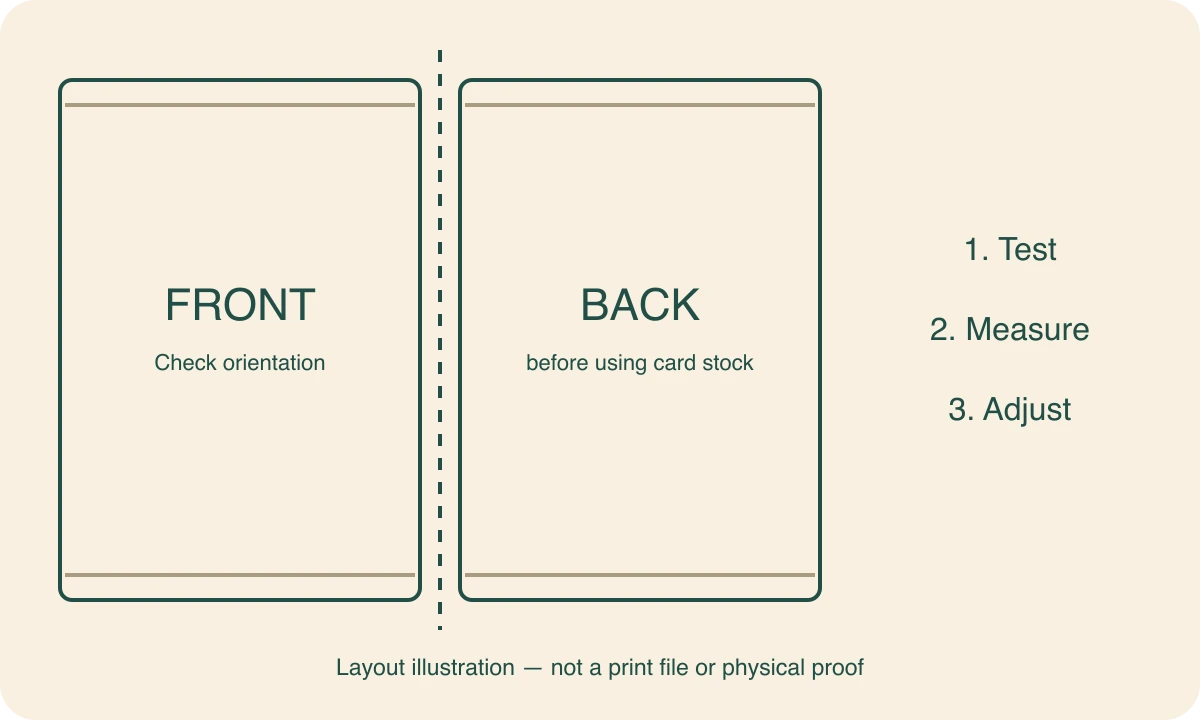
The original browser-printable sheet has a measured reference and two labeled test pages. Use it to investigate your own printer settings. It does not guarantee registration accuracy or represent a Cardbop print file. Its borders are measurement aids, not a promise that your printer can print borderless.
Prefer to design the keepsake and order it?
Add your own photo or artwork to a supported Cardbop style and personalize its fields. You can inspect the preview before ordering; you are not downloading a file for your home printer.
Free to design · No account needed to start · Preview before ordering.
Keep the common problems separate
- The size is wrong
- Check scaling and the selected paper size first. Measure the test reference before changing the artwork.
- The back is upside down
- Review the feed direction and duplex orientation using a plain-paper test and the printer's instructions.
- The sides do not line up
- Compare consistent edges, then check the layout and printer settings. Do not apply an unexplained universal offset.
- The photo or text looks soft
- Check the original file, retained crop, actual output size and print mode. A digital screenshot or a larger pixel count created by resampling is not proof of recovered detail.
- The colors look different
- Treat screen and print as different viewing conditions. A layout preview does not certify the physical color or finish.
Check the instructions that apply to your equipment
Canon explains automatic and manual duplex printing; consult the manual for your actual model and media. Adobe explains image size, resolution and resampling. These references explain general concepts, not Cardbop’s manufacturing process.
Frequently asked questions
How do I print trading cards at home?+
Prepare front and back artwork at the intended finished size, check the printer's supported media, test scaling and orientation on plain paper, then print on compatible stock and cut carefully. Settings and front/back alignment depend on your printer, driver, artwork and material.
Does Cardbop provide printable card downloads?+
No. Cardbop lets you personalize supported card designs and order finished cards. The alignment sheet linked in this guide is a generic printer test, not a Cardbop design export, printable trading card or print-order proof.
Can I use automatic double-sided printing on any cardstock?+
Do not assume that. Check your printer manual for the selected media, size, weight and duplex mode. A printer may support a material for one-sided printing without supporting it for automatic duplex printing.
How do I line up the front and back?+
Print a plain-paper orientation test at actual size, verify the top of each face and compare the borders. Adjust the layout or supported printer settings based on that test. There is no universal flip-edge choice or alignment offset for every printer.
Will my home print match the screen exactly?+
A screen preview does not certify printed color, stock or finish. Displays, lighting, printer settings, inks and media affect appearance. Use tests appropriate to your own equipment; a digital layout check is not a physical or color proof.
Can Cardbop print an arbitrary design file I upload?+
No. The Cardbop route is to add your photo or authorized artwork to its supported styles and personalize the available fields. It is not an arbitrary print-file upload or custom game-manufacturing service.